ArgusAI Tutorial

Medical Volume Visualization in Augmented Reality

A complete walkthrough for setting up Meta Quest, uploading patient scans, and using ArgusAI hand gestures and visualization tools.

Part 1

Getting Started with Meta Quest

Step 1: Initial Setup

Before using ArgusAI, you need to set up your Meta Quest headset:

  • Put on your Meta Quest headset.
  • Follow the on-screen instructions provided by Meta.
  • Complete the registration process.
  • Set up your Guardian boundary.
Note

Meta Quest guides you through the standard setup automatically.
Step 2: Installing ArgusAI

ArgusAI is distributed through a private release channel.

  1. Open a web browser on your computer or phone.
  2. Log in to your Meta account using the same account as your Quest headset.
  3. Visit the ArgusAI release channel: https://www.meta.com/s/8QdWpA1YT
  4. Click Request To Join.
  5. Wait for administrator approval.
  6. After approval, the app appears in your Quest library automatically.
Important

Use the same Meta account in the browser and on the Quest headset.

Note

Access approval can take time. You will be notified after approval.

Step 3: Launching ArgusAI

Once the app is installed, launch it from your Quest headset:

  1. Put on your Meta Quest headset.
  2. Navigate to the main Quest interface.
  3. Select Library.
  4. Find and select ArgusAI.
  5. The application launches.

Video: opening ArgusAI from the Quest library.

Part 2

ArgusAI Dashboard

Upload patient DICOM archives before opening them in VR. The web dashboard manages the scan list that syncs into the headset.

dash.argusai.pro

Step 1: Accessing the Dashboard

To access the ArgusAI Dashboard:

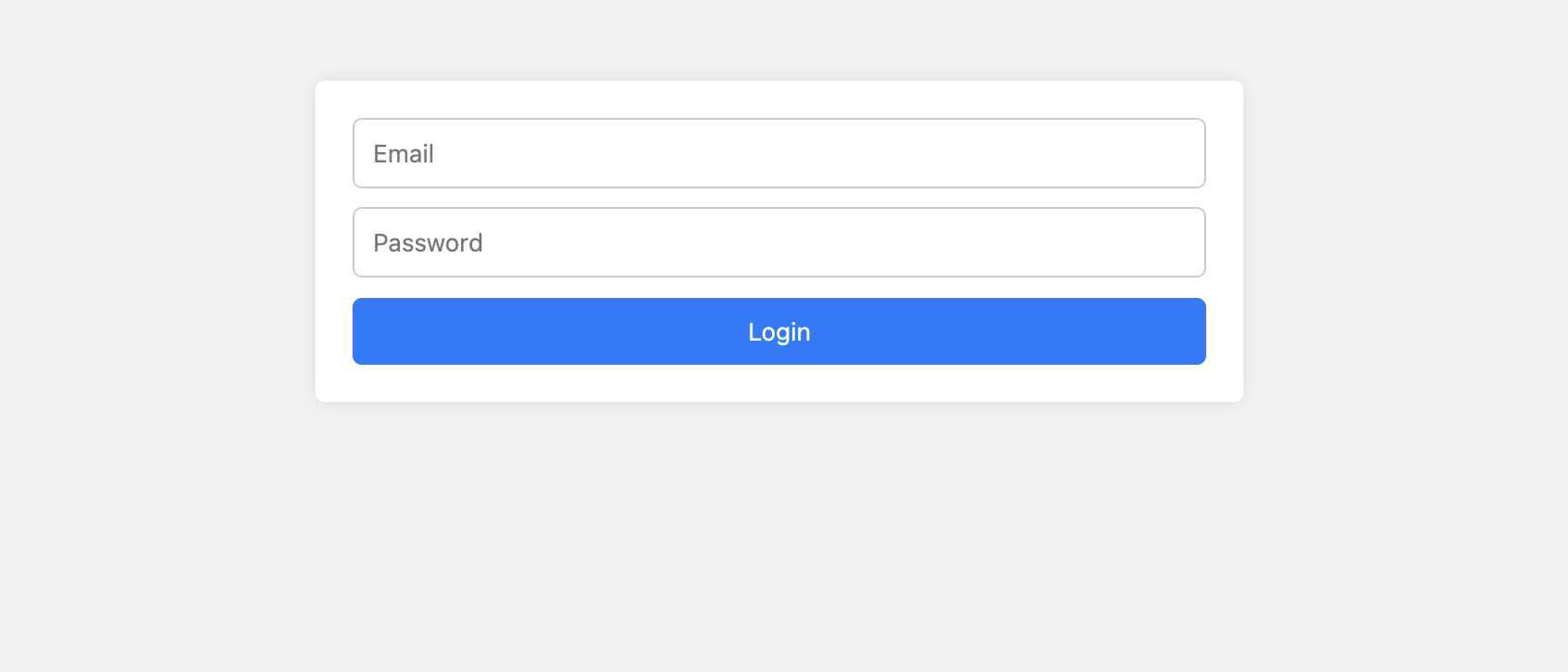
  1. Open a web browser and go to https://dash.argusai.pro.
  2. Enter your email address.
  3. Enter your password.
  4. Click Login.
Note

Use the same credentials provided for the VR application.

ArgusAI Dashboard login screen
Dashboard login screen

Dashboard login screen.

Step 2: Dashboard Overview

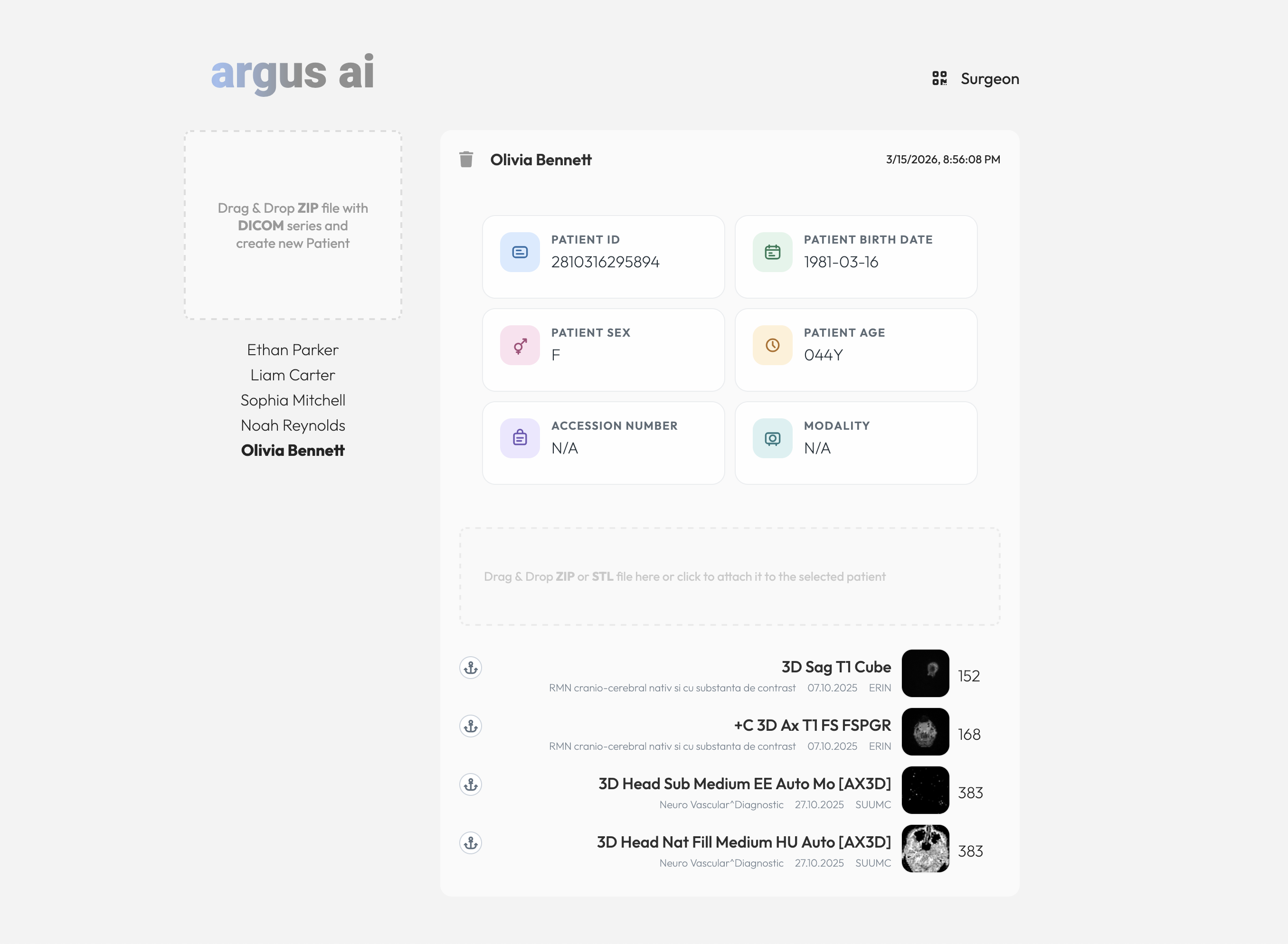
After logging in, the main dashboard shows:

  • Your username in the top-right corner.
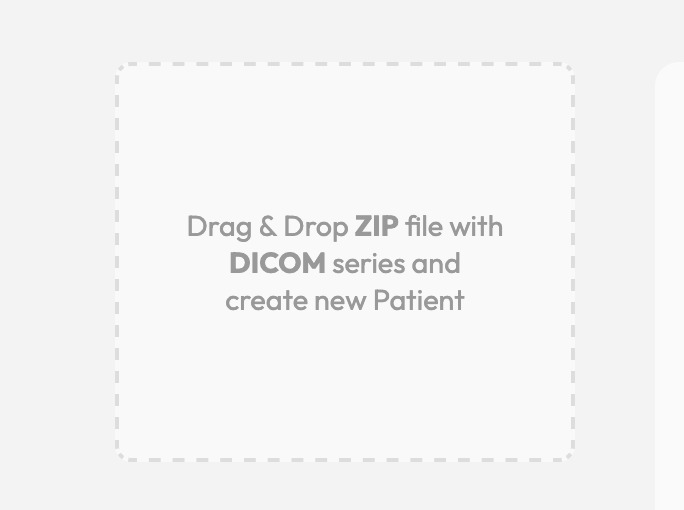
  • A central drag-and-drop upload zone.
  • The option to drag files in or click to browse.
ArgusAI Dashboard overview
Dashboard overview

Dashboard overview.

Step 3: Uploading Patient Data

To upload patient DICOM data:

  1. Prepare a ZIP archive containing DICOM files.
  2. Drag and drop the ZIP file into the upload zone, or click the zone to select it.
  3. Wait for the upload to complete.
  4. Review the detected patient information, including name, ID, birth date, sex, age, and series metadata.
Important

Only ZIP archives containing DICOM files are supported.

Automatic Sync

After upload, the patient data appears in the VR patient list without extra steps.

Uploaded patient information in dashboard
Uploaded patient details

Uploaded patient details.

Part 3

Using the ArgusAI Application

Sign in, open the menu, and load a patient model before moving into gesture-based interaction.

Step 1: Logging In

When you first launch ArgusAI, authenticate with your dashboard account:

  1. Enter your email and password.
  2. Click Continue.
  3. Wait for authentication to complete.
Note

If you do not have credentials, contact your administrator.

Video: first login inside the headset.

Step 2: Opening the Menu

The main menu is controlled by a hand gesture:

  • Use your right hand.
  • Make a thumbs up gesture.
  • The menu toggles on or off.
Tip

This gesture works anywhere in the application.

Video: toggling the main menu with the right hand.

Step 3: Loading Patient Data

To load an MRI or CT scan:

  1. Open the main menu.
  2. Go to Patient List.
  3. Select the patient to view.
  4. Wait for the 3D model to load.

Video: choosing a patient from the list.

Hand Gestures

Interactions Inside the Volume Viewer

These controls cover moving, scaling, slicing, releasing, transfer function editing, settings, and exit behavior.

Step 4: Moving the Model

  • Pinch your thumb and index finger together.
  • Move your hand while pinching to reposition the model.
  • Release the pinch to place the model.

Video: grabbing and moving the model.

Step 5: Resizing the Model

  • Use both hands.
  • Pinch with both hands at the same time.
  • Move hands closer to shrink the model.
  • Move hands apart to enlarge it.

Video: two-hand scaling gesture.

Step 6: Cross-Section View

  • Use your right hand.
  • Make a scissors gesture with the index and middle fingers extended.
  • A cross-section plane appears.
  • Move your hand to adjust slice position.
Use Case

Cross-sections help inspect internal structures without outer layers blocking the view.

Video: enabling and adjusting the slicing plane.

Step 7: Releasing Grabbed Objects

  • Use your right hand.
  • Make a stop gesture with an open palm.
  • Any object held by the right hand is released automatically.
Tip

Useful when you need to let go quickly without manually opening the hand.

Video: stop pose to release held objects.

Step 8: Dynamic Transfer Function

The transfer function controls how scan density maps into opacity and color.

Activating Transfer Function Mode

  1. Use your left hand.
  2. Make a thumbs up gesture.
  3. Transfer function mode becomes active.
  4. Repeat the gesture to disable it.

Adjusting the Curve

  • Keep transfer function mode enabled.
  • Use a pinch gesture in mid-air, away from the model.
  • Each hand controls a different point on the function curve.
  • Move horizontally to change density range.
  • Move vertically to change opacity.
  • Release the pinch when done.
What Is Transfer Function?

It decides which tissues are visible and how opaque they appear.

Important

Mid-air pinch works only while transfer function mode is enabled with the left-hand thumbs up gesture.

Video: enabling transfer function mode and adjusting the curve.

Step 9: Model Settings

  1. Open the main menu with the right-hand thumbs up gesture.
  2. Go to Settings.
  3. Adjust visualization parameters as needed.

Video: opening model settings.

Step 10: Exiting the Application

  • Use your hand to open the Quest universal menu.
  • From there you can exit the application.
  • You can also start recording or access Quest settings.

Video: opening the Quest system menu to exit.

Reference

Gesture Summary

Gesture Hand Action
Thumbs Up Right Toggle main menu on or off.
Thumbs Up Left Enable or disable transfer function mode.
Pinch (One Hand) Either Grab and move the model.
Pinch (Two Hands) Both Resize the model.
Scissors Right Activate cross-section view.
Stop Pose Right Release grabbed objects.